Azure: Backups and persistence
By default every write is appended to a log on disk and the log is synced once a second. You can choose a different persistence mode for each database, and…
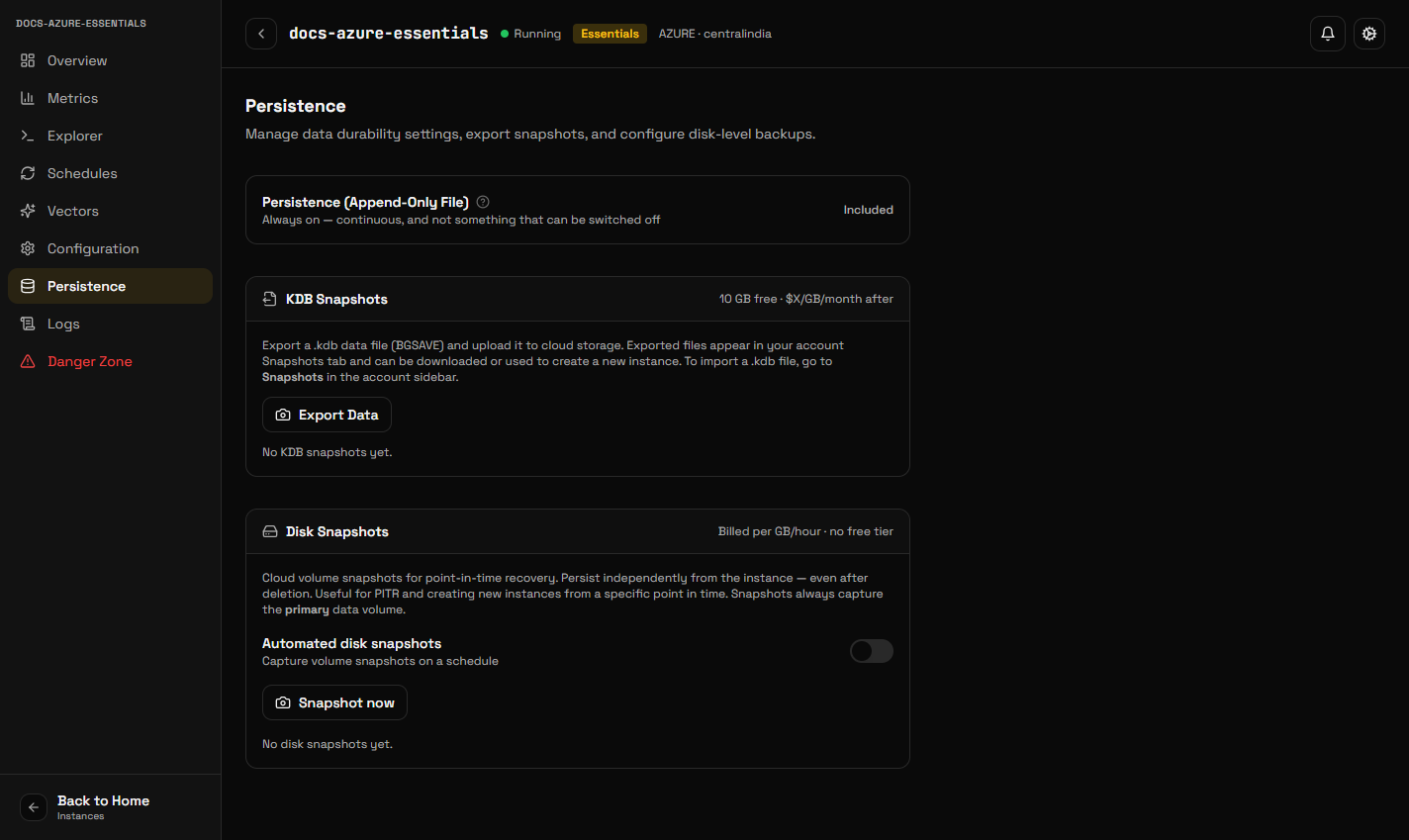
By default every write is appended to a log on disk and the log is synced once a second. You can choose a different persistence mode for each database, and an eviction policy for when its memory is full, under Configuration → Eviction and persistence. Both apply to every node without a restart.
Persistence modes
| Mode | What reaches the disk | What a crash loses |
|---|---|---|
| Append-only log, synced every second (default) | Every write, appended to a log synced once a second | About the last second of writes |
| Snapshot every hour / 6 hours / 12 hours | A snapshot of the whole dataset at that interval, no log | The writes since the last snapshot |
| None | Nothing on its own | Everything since the last snapshot a backup took, or everything if there was none |
With the log, a restarted node replays it and your data is there. With a snapshot mode, a restarted node loads the latest snapshot. Snapshots are taken on the primary; replicas copy the primary as they always do.
Switching the log off takes a snapshot straight away, so the dataset as it was at that moment is on disk. Switching it back on starts a fresh log from the live data.
There is no mode that syncs the log on every write. Redis offers one
(appendfsync always); the KiviDB engine syncs its log once a second in every
release, so it is not offered rather than offered and not done.
The price is the same in every mode: the disk is provisioned and billed the same way whichever you choose.
Free-tier databases run on a shared host without a disk of their own, so they have no persistence and their settings cannot be changed.
Changing either setting needs KiviDB 1.0.5 or later. A database on an older engine keeps the defaults until it is upgraded.
Eviction policy
What the engine does when the database reaches its memory limit:
| Policy | Behaviour |
|---|---|
noeviction (default) | Nothing is deleted; a write that needs more memory is refused with an OOM error |
allkeys-lru / allkeys-lfu / allkeys-lrm / allkeys-random | Delete the least recently used, least frequently used, least recently modified, or a random key, among all keys |
volatile-lru / volatile-lfu / volatile-lrm / volatile-random | The same, among keys with a TTL only |
volatile-ttl | Delete the key nearest to expiring, among keys with a TTL |
These are the engine's own policies, Redis's plus the two lrm ones. A policy
other than noeviction lets the engine delete keys to make room, which cannot
be undone. Free-tier databases use allkeys-lru.
The same settings are available from the API (GET and PATCH /instances/{id}/engine-settings, or eviction_policy and persistence_mode
when creating a database) and from the MCP tools get_engine_settings and
set_engine_settings.
Where your data actually lives
On Azure your dataset is on a Premium SSD managed disk, attached to the VM at LUN 0. It is a resource in its own right, not part of the VM, and it is created with the VM's delete option set to detach rather than delete.
That is a deliberate arrangement rather than a detail. It means the disk outlives the machine: a VM that is stopped, deleted or replaced during a recovery leaves the disk untouched, and a replacement node is put in front of the same disk with the same data on it. Nothing is copied and nothing is replayed from a backup — the log (or, in a snapshot mode, the snapshot) that was on the disk is what the new node starts from.
Disk snapshots
Disk snapshots are point-in-time copies of your instance's disk, stored in KiviDB's Azure subscription and usable to restore or to create a new instance.
They are incremental: after the first, each one bills for the blocks that changed since the previous snapshot of the same disk rather than for the whole provisioned size. Frequent snapshots of a mostly-static dataset are therefore much cheaper than the disk size suggests.
In Persistence → Automated disk snapshots you can set:
- Cadence — hourly, daily or weekly
- Retention — how many to keep, or how many days
Take one on demand with Create snapshot. Before the snapshot is taken the engine is asked to flush, so what is captured is a consistent point rather than whatever happened to be on disk.
Restoring
Snapshots → Restore. You can restore into the same instance, replacing its current contents, or create a new instance from the snapshot.
Restoring in place on Azure builds a new disk from the snapshot, stops the VM, swaps the disk and starts it again. Two details are worth knowing:
- The size is checked before anything stops. A snapshot larger than your current disk is refused rather than silently giving you a bigger disk than you are billed for; a smaller one is grown back up to your current size, so restoring an old snapshot does not shrink the instance.
- The old disk is kept until the instance is confirmed up, then removed. A restore that fails part-way puts the original disk back rather than leaving you with neither.
Restoring into an existing instance replaces everything in it. If you are unsure, restore into a new instance and compare before switching your application over.
Copying a snapshot to another region
Snapshots → Copy to region copies a snapshot into the other Azure region, so you can create an instance there from it. This is how you move an instance between regions, since an instance itself cannot move.
Copies stay within Azure. A snapshot never crosses clouds — an Azure snapshot cannot seed an AWS instance and the reverse is also true. Use a KDB export for that.
KDB exports
A KDB export is a portable data file you can download or use to seed a new instance. Create one from Persistence → KDB Snapshots → Export.
On Azure the export is uploaded straight from the node to Azure Blob Storage. The node holds no cloud credentials of any kind, so the upload uses a short-lived signed URL minted by the control plane — the same mechanism, with a different signature format, as the AWS path.
Exports appear under Snapshots in the account sidebar, where they can be downloaded or used when creating an instance. Use them to move data between clouds, keep an off-platform copy, or seed a development instance from production data.
Exports to your own bucket
KiviDB can copy every export into storage in your own cloud account, on demand or on a schedule: an S3 bucket, a Cloud Storage bucket or an Azure blob container, whichever cloud the database runs on. Add one under Settings → Backup destinations, make the grant the console shows, and choose Verify; then pick it on the database's Persistence tab. On Google Cloud and Azure the grant is limited by an IAM condition to that destination's own folder, and verification checks that KiviDB cannot write anywhere else. The steps for each cloud are in Exports to your own bucket.
Choosing between them
Disk snapshots are the operational backup: incremental, fast to restore, automatic on a schedule, tied to the instance and to Azure.
KDB exports are the portable copy: downloadable, usable on any cloud, good for archives and for moving data between instances.
Most people want automated disk snapshots running, and take a KDB export before anything irreversible.