Azure: Connect to your instance
Your instance overview shows everything needed to connect: the endpoint, the port, and your credentials. None of it is Azure-specific — a client that talks…
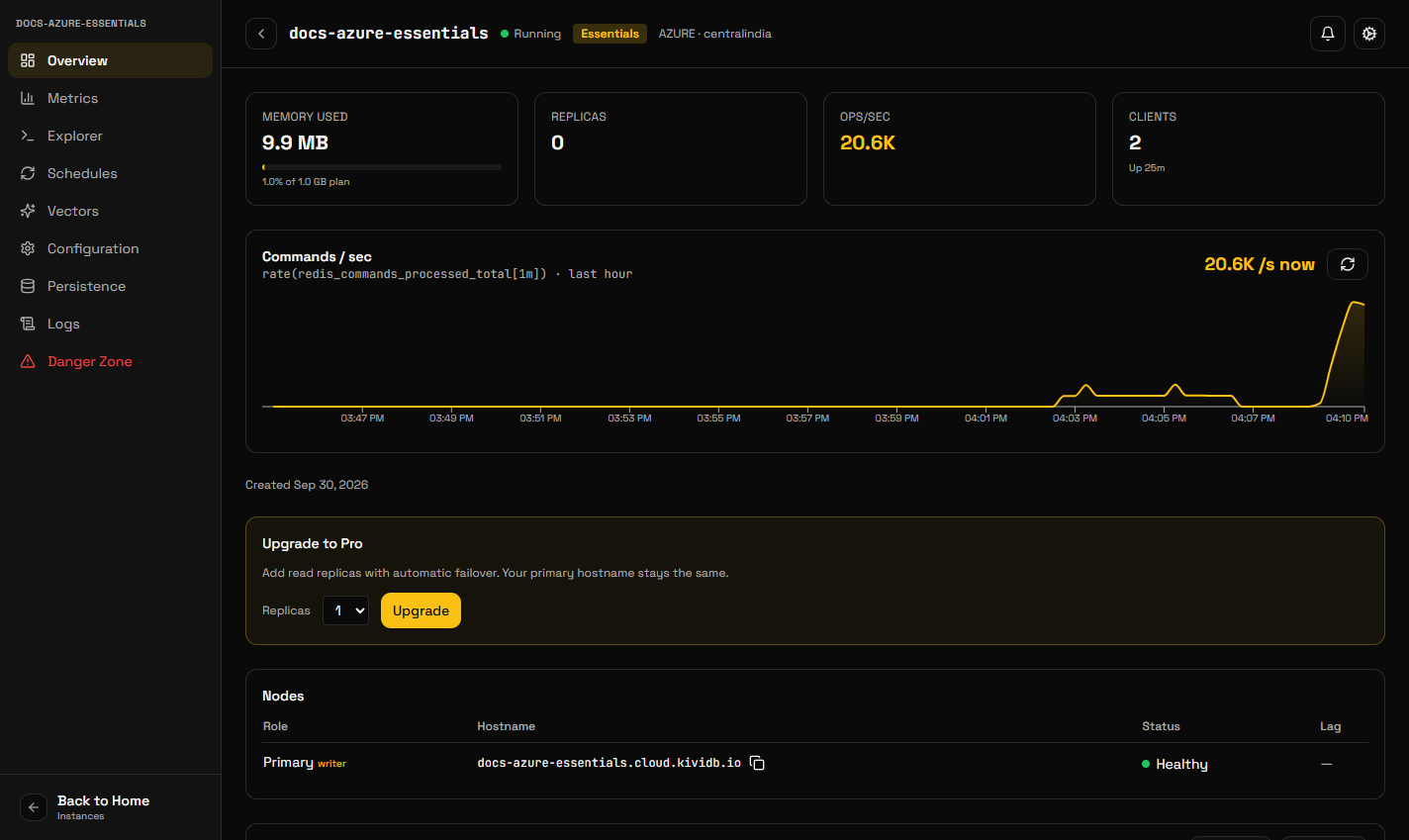
Your instance overview shows everything needed to connect: the endpoint, the port, and your credentials. None of it is Azure-specific — a client that talks to a KiviDB instance on AWS talks to one on Azure unchanged.
Endpoint and port
The endpoint is your instance's hostname, your-name.cloud.kividb.io. It is the
same shape on every cloud, and it resolves to your VM's public IP address.
That address is a Standard static public IP, held as a resource of its own rather than by the VM. This matters more than it sounds: it survives the VM being stopped, started, or rebuilt during a recovery, so the address your clients hold stays valid through all of it.
The port depends on your TLS setting:
| Setting | Port |
|---|---|
| TLS off | 6379 |
| TLS on | 6379 or 6380 (encrypted) |
| TLS required | 6380 only |
The overview always shows the port your allow-list actually opens, so use the value shown there rather than assuming.
Credentials
Under Access Credentials on the overview you will find your username and password. Click Reveal to see the password, or the copy button to take it without displaying it.
Every client must authenticate. There is no anonymous access — the default
unauthenticated user is disabled, and can do nothing but PING.
Examples
KiviDB speaks the Redis protocol, so any Redis client works.
redis-cli
redis-cli -h your-name.cloud.kividb.io -p 6379 -a "$KIVIDB_PASSWORD"
Node.js (ioredis)
import Redis from "ioredis";

const redis = new Redis({
  host: "your-name.cloud.kividb.io",
  port: 6379,
  password: process.env.KIVIDB_PASSWORD,
});

await redis.set("hello", "kivi");
Python (redis-py)
import os, redis

r = redis.Redis(
    host="your-name.cloud.kividb.io",
    port=6379,
    password=os.environ["KIVIDB_PASSWORD"],
)
r.set("hello", "kivi")
The overview page generates these snippets with your actual endpoint filled in, and adjusts them when TLS is enabled.
Connecting with TLS
When TLS is enabled, download the CA certificate from Configuration and point your client at it. The certificate is issued by KiviDB's own authority — not by Azure and not by a public CA — so your client will not trust it without this.
redis-cli -h your-name.cloud.kividb.io -p 6380 \
  -a "$KIVIDB_PASSWORD" --tls --cacert kividb-ca.pem
const redis = new Redis({
  host: "your-name.cloud.kividb.io",
  port: 6380,
  password: process.env.KIVIDB_PASSWORD,
  tls: { ca: fs.readFileSync("kividb-ca.pem") },
});
Connect by hostname, not IP address — the certificate is issued against the hostname and verification will fail against an address. This applies to the private-endpoint address too: if you connect privately and want TLS, put a Private DNS record in front of the endpoint IP rather than dialling the address.
If you cannot connect
Connection times out — your IP is almost certainly not on the allow-list. Check Configuration → Network → Allowed IPs. Note that your public IP changes on most home and office connections.
Authentication fails — copy the password from the overview rather than
retyping it. redis-cli prints its AUTH failed error and then carries on, so
read the whole output rather than looking for PONG in it.
Certificate errors with TLS — you are missing the CA certificate, or you are connecting by IP instead of hostname.
Timeouts from inside Azure, over a private endpoint — check the Private Endpoint and the machine you are connecting from are in the same VNet, or in peered VNets. A Private Endpoint in another VNet is invisible, and the symptom is a silent timeout rather than an error. See Set up private connectivity.
Everything looks right but nothing connects — check whether Block public access is enabled in Configuration. If so, the instance is only reachable through private connectivity.