Azure: Set up private connectivity
Private connectivity lets you reach your KiviDB instance from your own Azure network without traffic crossing the public internet. It uses Azure Private…
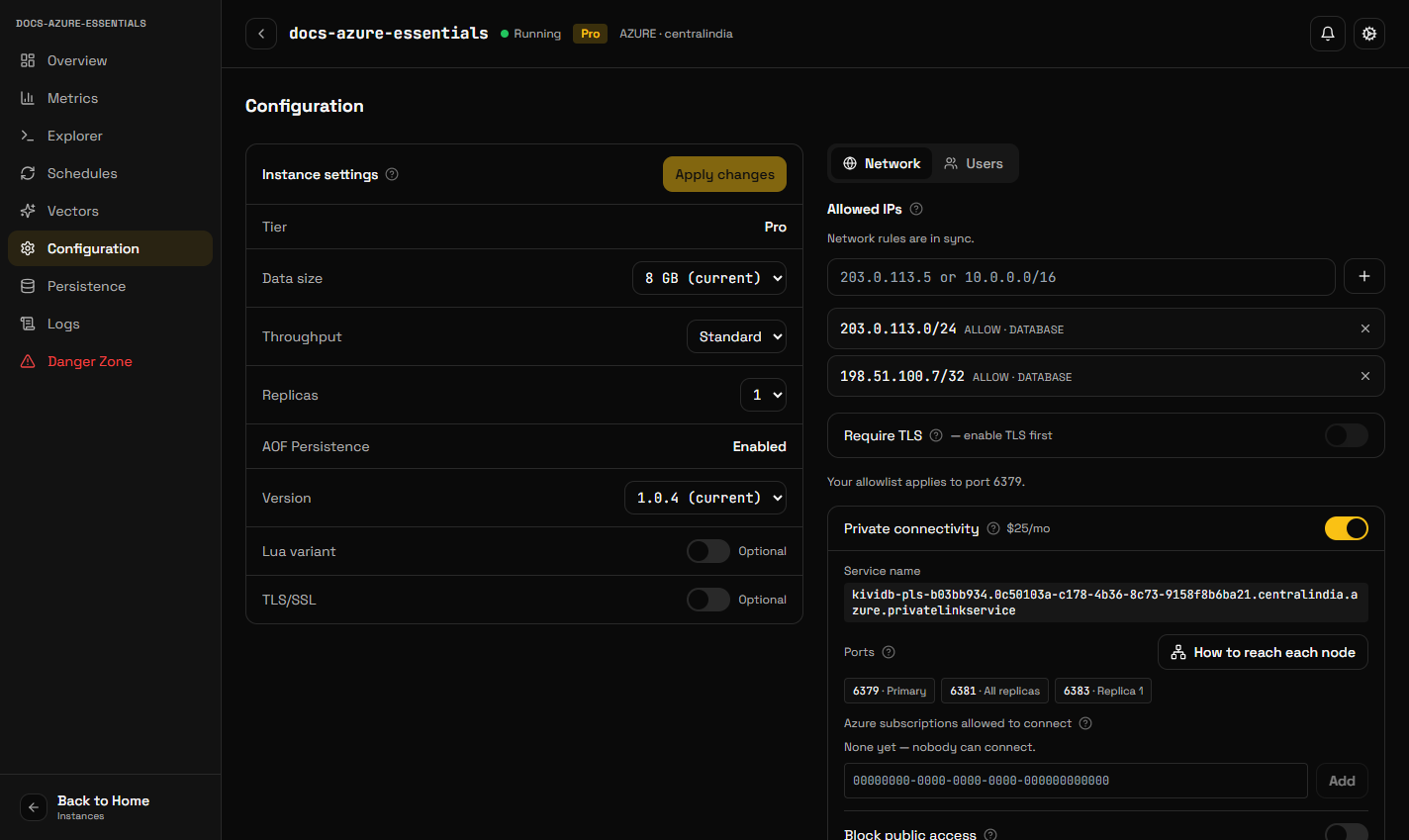
Private connectivity lets you reach your KiviDB instance from your own Azure network without traffic crossing the public internet. It uses Azure Private Link: KiviDB publishes a Private Link Service, and you create a Private Endpoint in your own VNet that connects to it.
Because the connection is made from inside your VNet, you do not need to allow-list any IP addresses. You can also turn off public access entirely once it is working.
What it costs
$25 per instance per month, plus $0.01 per GB of data through the endpoint.
Two things to know about the charge:
- It is prorated hourly. Enabling it for a few hours costs a few cents, not $25.
- It continues while the instance is stopped. The network resources stay allocated to you whether the database is running or not, so stopping an instance does not pause this charge. Turning private connectivity off does.
Before you start
You need:
- A paid instance. Free-tier instances run on shared infrastructure and cannot use private connectivity.
- An Azure subscription of your own, with a VNet in the same region as your instance.
- Permission to create Private Endpoints in that VNet.
Step 1 — Enable it on your instance
- Open your instance, go to Configuration → Network.
- Turn on Private connectivity.
The service takes two to three minutes to build: an internal load balancer in front of your node, and a Private Link Service in front of that. You will see a notification while it works, and the alias appears when it is ready. You can leave the page; the notification will tell you when it is done.
Until the service exists there is nothing to allow-list against, so the field for Azure subscriptions stays hidden. It appears once the alias does.
Step 2 — Allow your subscription
Once the alias appears, add the subscription that will connect. Find its ID:
az account show --query id -o tsv
Back in Configuration → Network → Private connectivity, add that GUID. It looks like:
00000000-0000-0000-0000-000000000000
Azure authorises subscriptions, not individual identities — there is no equivalent of an IAM principal here. Anyone who can create a Private Endpoint in an allowed subscription can connect, so allow the subscriptions you actually control.
Adding a subscription does two things at once: it makes the service visible to that subscription, and it makes its connection requests auto-approved. A subscription that is not listed cannot even see the alias, and removing one revokes its access.
Step 3 — Create the Private Endpoint
Create it in a subnet of the VNet your clients actually run in. Use the alias from your instance page:
az network private-endpoint create \
  -g <your-resource-group> -n kividb-pe \
  --vnet-name <your-vnet> --subnet <your-subnet> \
  --connection-name kividb \
  --manual-request true \
  --private-connection-resource-id "kividb-pls-xxxxxxxx.<guid>.<region>.azure.privatelinkservice"
--manual-request true looks wrong and is not. It only tells the CLI that the
value is an alias rather than a resource ID, so it goes into
manualPrivateLinkServiceConnections. That is the field Azure requires when you
connect across subscriptions, where you have no RBAC on our service and
therefore cannot name its resource ID. Without the flag the CLI rejects the
alias with LinkedInvalidPropertyId.
The connection is still approved automatically if your subscription is on the list from step 2 — auto-approval is evaluated regardless of how the request was submitted. The portal connects by alias too (Private Link → Private endpoints → Create → Connect to a resource by resource ID or alias), and behaves the same way.
Check it was approved:
az network private-endpoint show -g <your-resource-group> -n kividb-pe \
  --query 'manualPrivateLinkServiceConnections[0].privateLinkServiceConnectionState' -o json
"status": "Approved" means you are through. Pending means the subscription
you created the endpoint in is not the one you allow-listed.
Step 4 — Get the address and connect
A Private Endpoint is a network interface in your subnet, so what you connect to is its private IP address:
az network nic show \
  --ids "$(az network private-endpoint show -g <your-resource-group> -n kividb-pe \
    --query 'networkInterfaces[0].id' -o tsv)" \
  --query 'ipConfigurations[0].privateIPAddress' -o tsv
That address is in your own subnet's range. Connect to it on port 6379 (or
6380 with TLS), using the same username and password as the public endpoint:
redis-cli -h 10.1.0.4 -p 6379 --user kividbapp -a "$KIVIDB_PASSWORD" PING
There is no Azure-provided hostname for a Private Link Service the way there is for a PaaS resource. If you want a name rather than an address, create a Private DNS zone in your own subscription and point a record at that IP.
Step 5 — Ports
Azure instances are single-node, so the port map is short:
| Port | Reaches |
|---|---|
| 6379 | Your node. Reads and writes. |
| 6380 | The same node over TLS. |
6380 exists only when TLS is enabled on the instance. Your instance page lists the exact set under Configuration → Network, with a diagram.
The multi-port map that addresses individual replicas is an AWS feature, because replicas are. It appears here if and when Azure sells more than Essentials.
Step 6 — Optionally block public access
Once private connectivity is working, you can close the public path.
In Configuration → Network, turn on Block public access.
This withdraws your entire IP allow-list, so no client of yours can reach the instance over the internet. Only the subscriptions you allowed can connect.
Your allow-list rules are kept, not deleted. Turn the option off and they are reapplied exactly as they were.
Two things worth understanding before you enable it:
- Test your private connection first. If it is not working, blocking public access will leave you unable to reach the instance from anywhere.
- KiviDB keeps a management connection. It is used only to operate the service — health monitoring, applying user and permission changes you request, and the in-browser data browser. It cannot be disabled, because those features stop working without it. So blocking public access removes public reach for your clients; it does not remove every network path to the instance. This is set out in section 10.4 of the Terms of Service.
Because of that management connection, the Explorer keeps working after you block public access. That is expected, not a fault.
Turning it off
Turn Private connectivity off in Configuration → Network. The Private Link Service and its load balancer are removed within a few seconds, and billing stops at that moment.
If Block public access is on, turn that off first. KiviDB will refuse to disable private connectivity while it is the only way in, since doing so would leave the instance unreachable.
Your own Private Endpoint is not deleted by this — it belongs to your subscription, and it keeps costing you Azure's own per-endpoint charge until you remove it:
az network private-endpoint delete -g <your-resource-group> -n kividb-pe
Troubleshooting
The connection times out from a VM that should be able to reach it — check the VM and the Private Endpoint are in the same VNet, or in VNets that are actually peered. This is the most common mistake: a Private Endpoint in one VNet is invisible to a VM in another, and the symptom is a silent timeout rather than an error. Compare them:
az network nic show --ids "$(az vm show -g <rg> -n <vm> --query 'networkProfile.networkInterfaces[0].id' -o tsv)" \
  --query 'ipConfigurations[0].subnet.id' -o tsv
If the VM's subnet ID and the endpoint's subnet ID do not share a VNet, that is
your answer. A route to the endpoint's range showing Next Hop Type: None in
az network nic show-effective-route-table confirms it.
LinkedInvalidPropertyId when creating the endpoint — you passed the alias
without --manual-request true. See step 3.
Connection stuck in Pending — the subscription you created the endpoint in
is not on the allowed list. Check step 2, and make sure the GUID matches
az account show --query id -o tsv in the subscription you are actually
deploying into.
Subnet has PrivateEndpointNetworkPolicies enabled — some older subnets
refuse Private Endpoints. Turn the policy off:
az network vnet subnet update -g <rg> --vnet-name <vnet> -n <subnet> \
  --private-endpoint-network-policies Disabled
Connected but authentication fails — you are reaching the instance, and the
credentials are wrong. Use the same username and password as the public
endpoint, and read the whole redis-cli output rather than looking for PONG
in it: it prints its AUTH failed error and carries on, so PONG can appear in
a session that never authenticated.
Cannot see the field to add a subscription — the service is still being created. Wait for the notification.