Azure: Browse your data
The Explorer is a data browser built into the dashboard. It lets you inspect keys, run commands, and check what is actually in your database without…
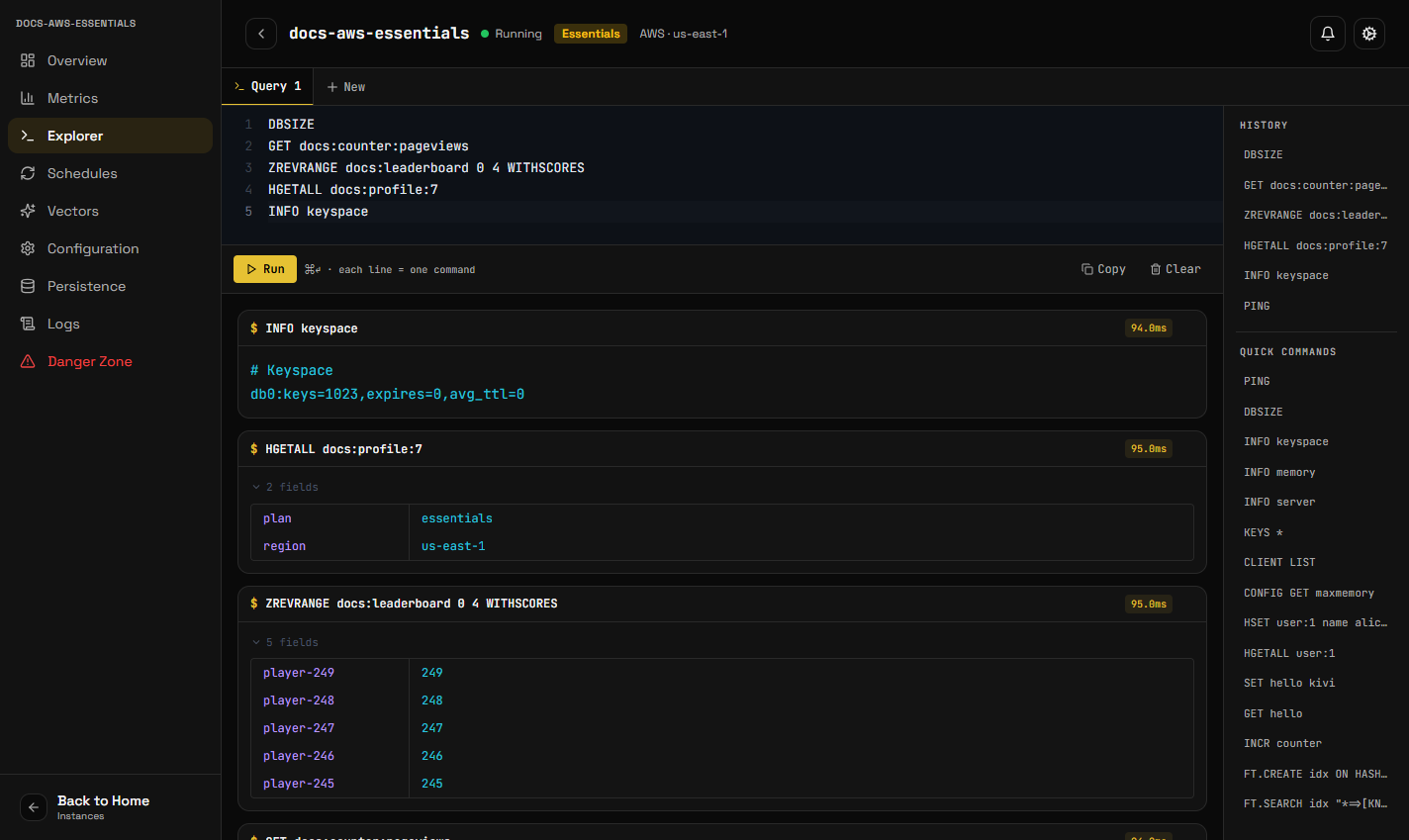
The Explorer is a data browser built into the dashboard. It lets you inspect keys, run commands, and check what is actually in your database without installing a client.
Open it from the sidebar of any running instance.
What you can do
Browse keys. Search by pattern, page through results, and see each key's type, size and expiry.
Inspect values. Strings, hashes, lists, sets and sorted sets are rendered appropriately rather than dumped as raw text.
Run commands. A console for ad-hoc commands against your instance, with the same permissions as the user you are running as.
Search. The Search tab queries your search indexes by keyword, by meaning or
both, with filters on tag and numeric fields, and shows the exact FT.SEARCH it
ran. Its Vector Sets view browses VADD collections and runs similarity search
from any point, showing each neighbour's cosine similarity (-1 to 1) on every
KiviDB version. (VSIM ... WITHSCORES itself reports (1 + cosine) / 2, 0 to 1,
from KiviDB 1.2.) No index yet? Load the sample dataset from the same tab.
Run Lua scripts. On an instance built with Lua, the Explorer has a second
mode, Lua script, next to Commands. A script runs as one unit: the engine
executes it atomically, so it is never split into lines the way commands are.
Enter the keys it touches under KEYS and anything else under ARGV; in
the script they are KEYS[1], ARGV[1] and so on, and the console works out
the key count for you. Each result shows the script's SHA, which your
application can call with EVALSHA. Tick Read-only to run it with
EVAL_RO, which refuses any write; scripts sent to a replica always run that
way. Five starter scripts (a rate limiter, compare-and-set, an atomic transfer,
a cache read-through and a key count) are in the side panel, and Save keeps
your own in this browser.
Being careful
A Lua script blocks the instance while it runs: no other client is served until it finishes. If one loops or runs too long, press Stop. A script that has already written data cannot be stopped without breaking its all-or-nothing guarantee, so Stop refuses; it then has to finish, or the instance be restarted.
The Explorer is connected to your live database, not a copy. A DEL here
deletes real data, and a FLUSHALL empties the instance.
Two commands worth naming: KEYS scans the entire keyspace and will block a
large instance for the duration — prefer the search box, which uses a
non-blocking scan. And FLUSHALL cannot be undone except by restoring a
snapshot.
Why it works when public access is blocked
The Explorer runs from KiviDB's own infrastructure, not from your browser. Your browser talks to the KiviDB dashboard, which talks to your instance.
This is why it keeps working when you block public access, and why it does not need your IP on the allow-list. It is covered in section 10.4 of the Terms of Service.
If the Explorer will not connect
It needs the instance to be Running. A stopped, creating or failed instance has nothing to browse.
If the instance is running and the Explorer still cannot reach it, that usually points at a problem with the instance itself rather than your network — check the instance status and recent notifications.