Bring your own cloud: Connect from inside your VPC
A database in your own account has private endpoints as well as its public one. From machines in the same VPC (on Google Cloud, the same VPC network; on…
A database in your own account has private endpoints as well as its public one. From machines in the same VPC (on Google Cloud, the same VPC network; on Azure, the same virtual network), or in a network connected to it, use the private endpoints: the traffic stays inside your network.
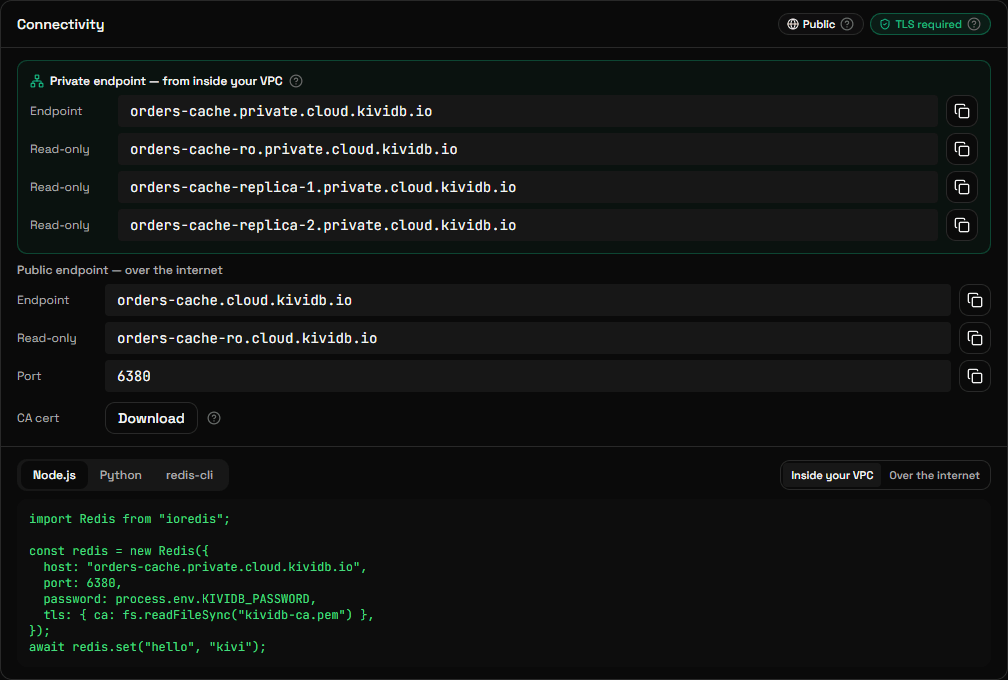
Private endpoints
They are shown first on the database's overview, under Connectivity → Private endpoint — from inside your VPC:
| Name | Resolves to |
|---|---|
your-name.private.cloud.kividb.io | the primary |
your-name-ro.private.cloud.kividb.io | every replica (Pro) |
your-name-replica-1.private.cloud.kividb.io, -replica-2, ... | one particular replica (Pro) |
Use the primary's name for writes and for reads that must see the latest data. Use the read-only name to spread reads across all replicas. Use a per-replica name only when a client must always read from the same replica, for example the one in its own availability zone.
The code samples under Connectivity use the private endpoint when Inside your VPC is selected.
redis-cli -h your-name.private.cloud.kividb.io -p 6379 -a "$KIVIDB_PASSWORD"
Connect by name, not by address
Always connect by the private name, never by a node's private IP address. When a failover replaces the primary, or a replica is replaced, the address changes and the name moves with it, usually within a minute. Clients that reconnect by name follow the database without any change on your side.
Who can reach it
On AWS, each database has its own security group, which KiviDB creates and keeps up to date:
- Your VPC is allowed in automatically, on the database's ports, for every IPv4 range associated with the VPC. A range you add to the VPC later is picked up too. You don't need to add the VPC to the allowlist.
- The allowlist controls who reaches the public endpoint. Manage it in Configuration → Network, as described in Control who can connect.
- Other private networks, such as a peered VPC, a Transit Gateway or a VPN,
are not allowed in automatically. Add their ranges to the allowlist, for
example
10.30.0.0/16.
Make sure your own side allows the traffic too: the security groups and network ACLs of your application machines must allow outbound connections to the database's port.
Don't edit the database's security group in AWS yourself. KiviDB manages its rules and may replace changes made outside the console.
On Google Cloud
Each database has a set of firewall rules on your VPC network, named
kividb-<id>-… and applied to its nodes by a network tag, which KiviDB creates
and keeps up to date:
- Your subnets are allowed in automatically, on the database's ports, by the
rules
kividb-<id>-vpc-6379andkividb-<id>-vpc-6380. They cover every subnet the connection names on that network, in any of its regions, with their primary and secondary ranges, so GKE pods using a secondary range get in too. A subnet you add to the connection later is picked up within a few minutes of the connection being verified again. - The allowlist controls who reaches the public endpoint, as on AWS.
- The database's own nodes reach each other through a rule that names their tag, not your subnet, so nothing else in your subnet is let in by it.
- Other subnets and networks, such as a subnet the connection does not name, a peered VPC network or a VPN, are not allowed in automatically. Add their ranges to the allowlist.
The rules follow the database's TLS setting: with TLS required, only 6380
is open to your subnets. Don't edit or delete the kividb-… rules yourself;
KiviDB recreates them and may replace changes made outside the console.
On Azure
Each database has its own network security group, on its network interfaces, which KiviDB creates in the connection's resource group and keeps up to date:
- Your virtual network is allowed in automatically, on the database's ports,
by the rules named
byoc-vpc-…. They cover every address range of the virtual network the connection's subnets are in for that region. You don't need to add it to the allowlist. - The allowlist controls who reaches the public endpoint, as on AWS.
- The database's own nodes reach each other through a rule,
byoc-intra-6379, that admits only the subnets the database is placed in. - Other private networks, such as a peered virtual network, a VPN or ExpressRoute, are not allowed in automatically. Add their ranges to the allowlist.
The rules follow the database's TLS setting: with TLS required, only 6380
is open to your virtual network. Don't edit the database's network security
group yourself; KiviDB manages its rules and may replace changes made outside
the console.
Ports and TLS
The private endpoints use the same port, password and TLS settings as the public endpoint:
| Setting | Port |
|---|---|
| TLS off | 6379 |
| TLS on | 6379 or 6380 (encrypted) |
| TLS required | 6380 only |
With TLS, download the CA certificate from Configuration and point your client at it. The certificate covers the private names as well as the public ones, so verification works when you connect by the private name.
redis-cli -h your-name.private.cloud.kividb.io -p 6380 \
  -a "$KIVIDB_PASSWORD" --tls --cacert kividb-ca.pem
See Connect to your instance for credentials and client examples in other languages.
If you cannot connect
Connection times out from inside the VPC: check that the client is in the database's VPC and that its own security group and network ACL allow outbound traffic to the port. From a peered or connected network, add that network's range to the allowlist. On Google Cloud, check that the client is in a subnet the connection names (or add its range to the allowlist), and that no higher-priority deny rule of yours blocks the port: KiviDB's rules use priorities 1000 to 1901. On Azure, check that the client is in the virtual network the connection's subnet belongs to (or add its range to the allowlist), and that a network security group on the client's own subnet or interface allows the outbound traffic.
The name does not resolve: check that the client can resolve public DNS names. The private names are published in public DNS and resolve to private addresses.
Certificate errors with TLS: use the CA certificate from Configuration, and connect by name rather than by IP address.