Bring your own cloud: Connect your Google Cloud project
Once a project is connected and verified, it appears under Where it runs when you create a Google Cloud database in one of its regions. See Create a…
Once a project is connected and verified, it appears under Where it runs when you create a Google Cloud database in one of its regions. See Create a database in your account.
Connecting a project takes about ten minutes. You must be the owner of the KiviDB organization. In the Google Cloud project, you need to be an Owner, or have the rights to create custom roles and service accounts and to grant IAM roles.
Before you start, have ready:
- the project ID: the ID, not the display name or the project number
- the regions you want databases in
- the name of an existing Cloud Storage bucket in that project, for backups. It must use uniform bucket-level access.
- for each region, the VPC network and the subnet to put databases in. Both must be in the same project; Shared VPC is not supported yet.
Open Settings → Cloud accounts and click Connect a cloud account. Your progress is saved after each step, so you can close the dialog and come back. An unfinished connection shows as Pending, and Continue setup picks up where you left off.
1. Choose the cloud
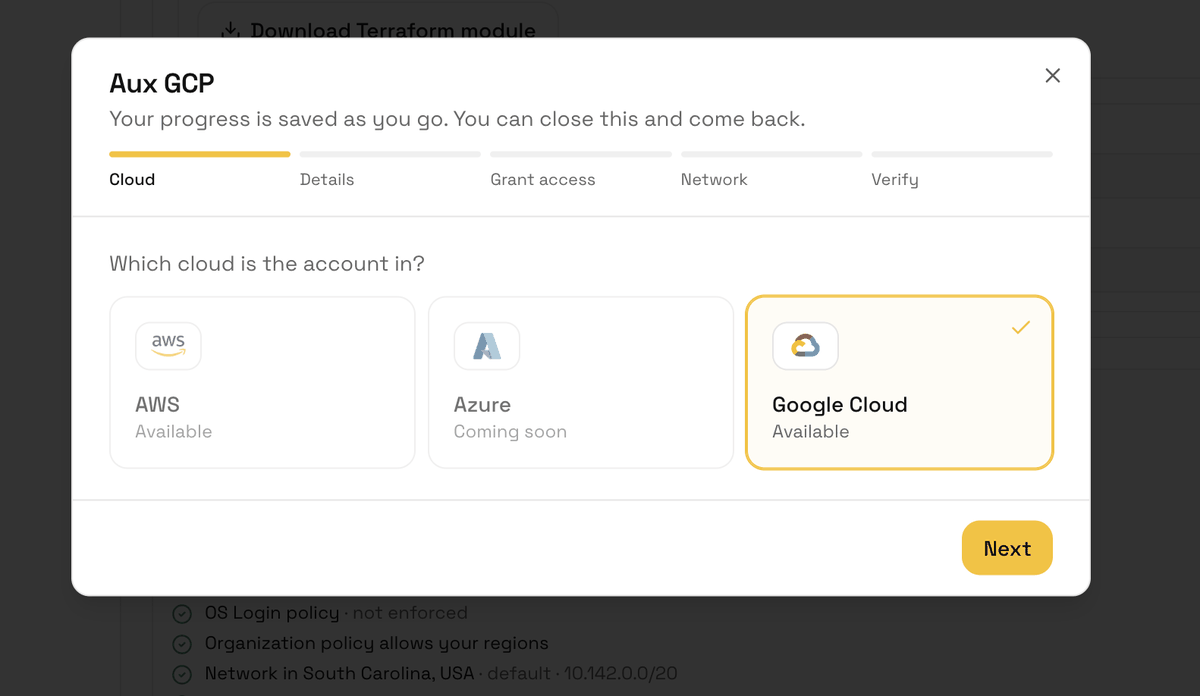
Choose Google Cloud.
2. Enter the project details
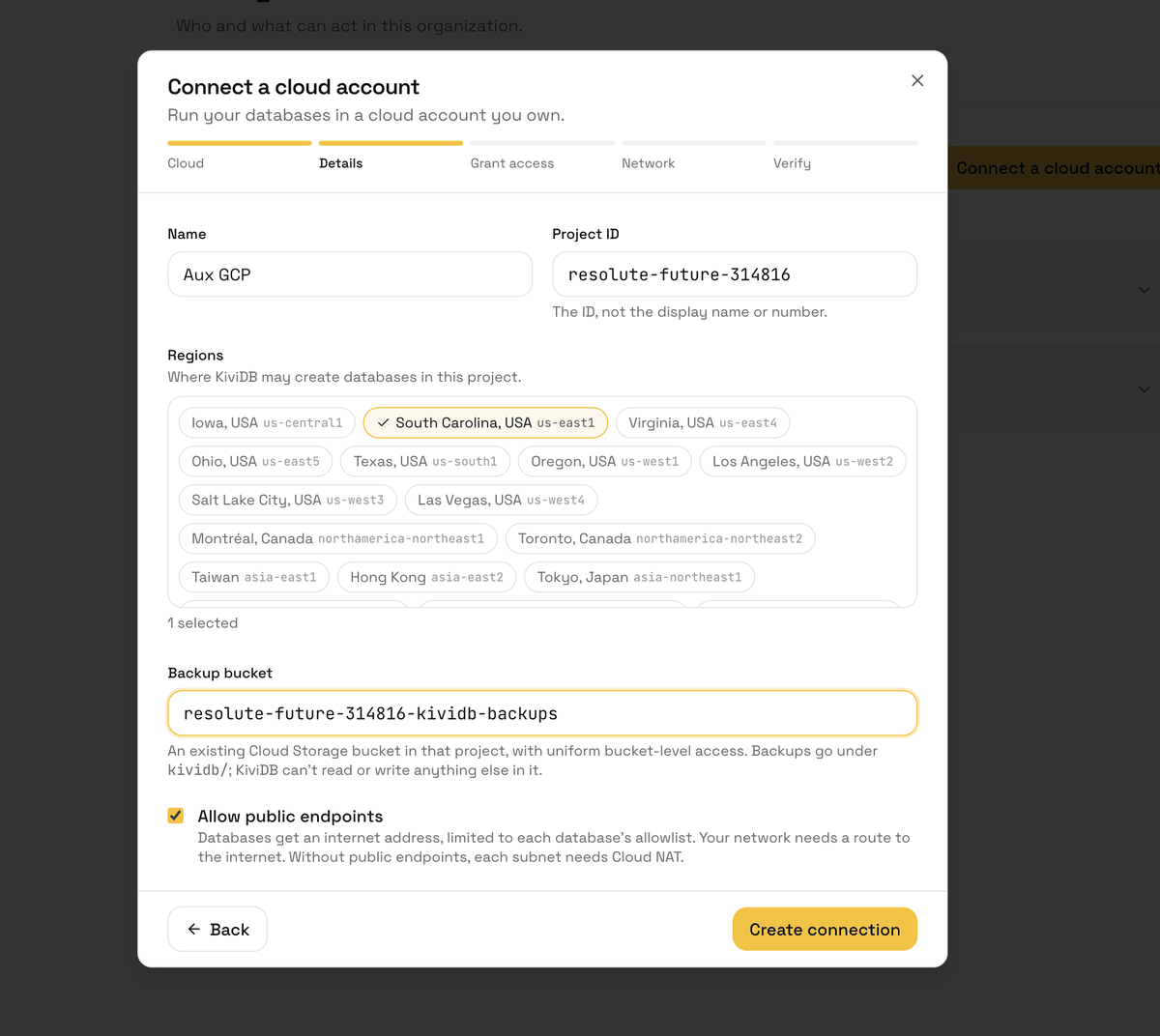
- Name: what this connection is called in KiviDB, for example Production GCP.
- Project ID: for example
acme-prod-123. - Regions: every region KiviDB may create databases in.
- Backup bucket: an existing bucket in that project. Backups are written
under
kividb/. KiviDB cannot read, change or delete anything else in the bucket. - Allow public endpoints: databases get an internet address that only the IPs on their allowlist can reach. Leave it on for now.
Click Create connection. These details are fixed from here on. To change them, you disconnect the project and connect it again. Each project can be connected to an organization once.
3. Grant access
KiviDB works in your project as a service account named kividb-mgmt, which you
create. You then let KiviDB's own service account act as it, which Google calls
impersonation. No keys are created or shared. Do it one of two ways. Both
create exactly the same things.
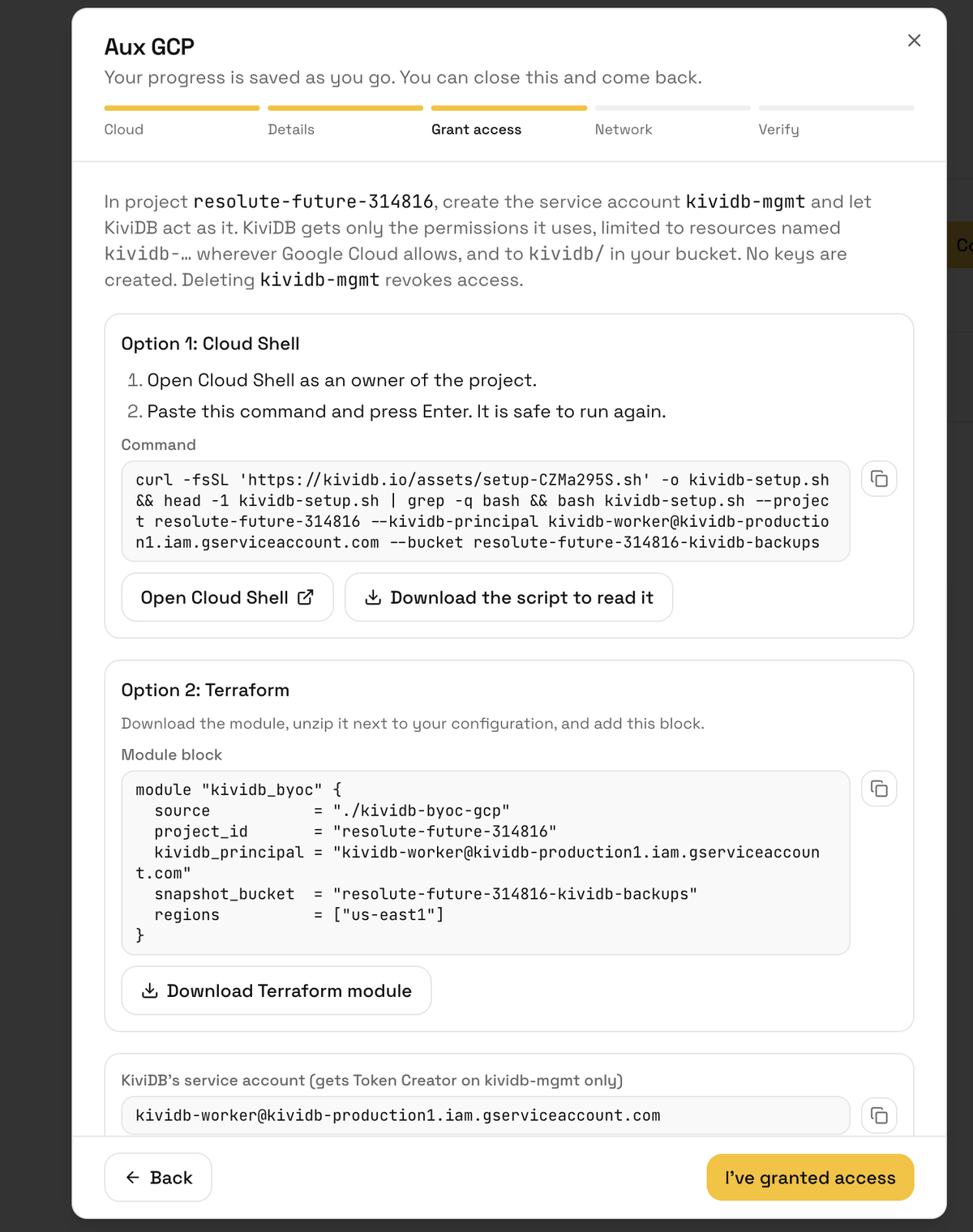
Option 1: Cloud Shell
- Click Open Cloud Shell, signed in as an owner of the project.
- Copy the Command shown in KiviDB, paste it into Cloud Shell and press Enter. Your project, bucket and KiviDB's service account are already filled in.
The command downloads KiviDB's setup script and runs it. To read the script first, click Download the script to read it. It is safe to run more than once. It:
- enables the APIs KiviDB uses
- creates three custom roles:
kividbManagement,kividbManagementProjectandkividbBackups - creates
kividb-mgmtand grants it those roles - grants KiviDB's service account the Service Account Token Creator role on
kividb-mgmt, and on nothing else - adds one CORS rule to the bucket so the KiviDB console can upload
.kdbfiles into it, merged with the rules already there (see Browser uploads (CORS))
Option 2: Terraform
- Click Download Terraform module and unzip it next to your configuration.
- Copy the Module block shown in KiviDB into your configuration.
- Run
terraform applywith your usual Google provider credentials. - Optional: to upload
.kdbfiles from the KiviDB console, run the module'scors_commandoutput once in Cloud Shell, from the module's directory. See Browser uploads (CORS).
Then click I've granted access. IAM changes in Google Cloud can take a minute or two to apply.
For exactly what each role allows, and what Google Cloud cannot limit, see Permissions and security.
4. Choose the network
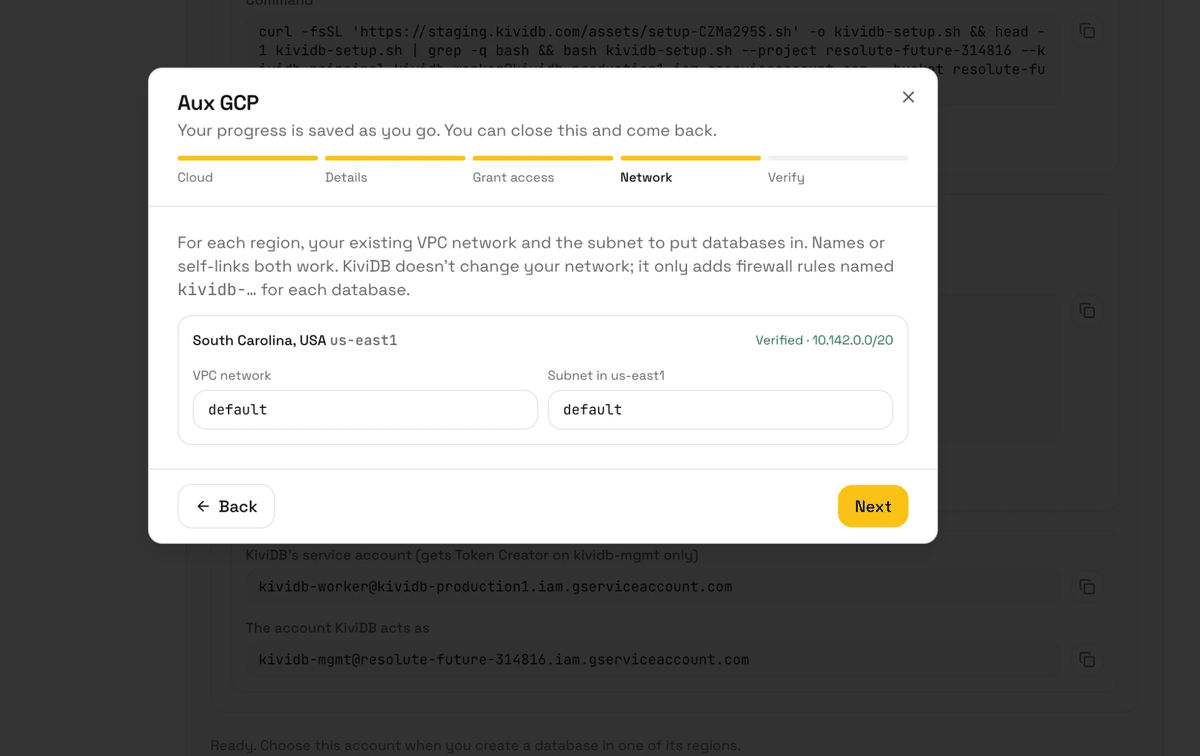
For each region, enter:
- VPC network: the network your databases should run in. A name such as
prod-vpc, or its full self-link, both work. - Subnet: the subnet in that region to put databases in. Database nodes in a region spread across that region's zones; a subnet in Google Cloud spans every zone, so one is enough.
The network needs a route for 0.0.0.0/0 to the default internet gateway.
Without public endpoints, the subnet also needs Cloud NAT. KiviDB does not
change your network. It adds firewall rules named kividb-… for each database,
and nothing else: one for its allowlist, one for KiviDB's control plane, one
that lets the database's own nodes replicate to each other, and one that lets
the subnets you name here reach it on its private endpoint. See
Connect from inside your VPC.
5. Verify
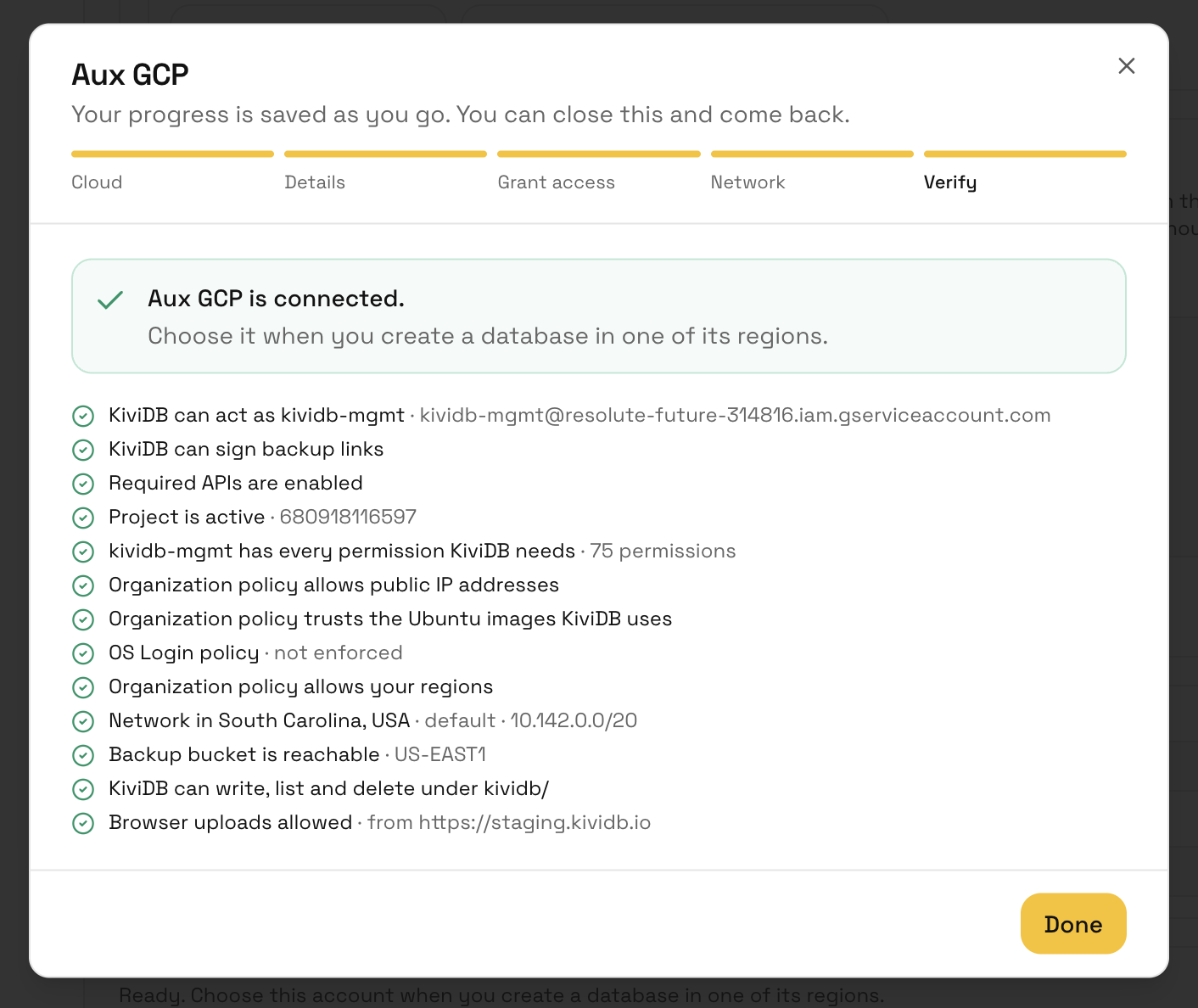
Click Verify. KiviDB checks the whole setup. Unlike the AWS check, it does
not stop at the first problem: every failing check is listed, each with what to
fix. Nothing is created except one test file under kividb/ in your bucket,
which is deleted again.
| Check | What it confirms |
|---|---|
| KiviDB can act as kividb-mgmt | kividb-mgmt exists, and KiviDB's service account holds Token Creator on it. |
| KiviDB can sign backup links | The same grant covers signing, which backups and restores use. |
| Required APIs are enabled | Compute Engine, Cloud Storage, IAM, IAM Credentials, Cloud Resource Manager and Service Usage. |
| Project is active | The project exists and is not being deleted. |
| kividb-mgmt has every permission KiviDB needs | Each permission in the custom roles, named one by one if any is missing. |
| Organization policies | That no organization policy forbids public IP addresses (when public endpoints are on), distrusts the Ubuntu images KiviDB's machines boot from, or excludes your regions. |
| Network in region | The subnet exists in that region and network, and the network routes to the internet (and has Cloud NAT, when public endpoints are off). |
| Backup bucket is reachable | The bucket exists in this project and uses uniform bucket-level access. |
| Backup bucket grants what KiviDB needs | kividb-mgmt has the kividbBackups permissions on the bucket. |
| KiviDB can write, list and delete under kividb/ | The bucket grant works for real. |
| Browser uploads allowed | The bucket's CORS lets the KiviDB console upload .kdb files. Only ever a warning: see Browser uploads (CORS). |
A check marked with a warning passed but could not be fully confirmed. For example, an organization policy may allow your regions through a location group KiviDB cannot expand. Read the detail and check it yourself.
When every check passes, the connection is Verified. If a check fails, see Troubleshooting.
Browser uploads (CORS)
When you import a .kdb file from the KiviDB console and store it in this
project, your browser uploads it straight into your backup bucket, through a
short-lived signed link. A browser only does that when the bucket's CORS
configuration allows the KiviDB console's site, so the setup adds one rule:
| Setting | Value |
|---|---|
| Origin | The KiviDB console, https://kividb.io |
| Method | PUT |
| Response headers | Content-Type, ETag |
| Max age | 3600 seconds |
The rule is merged into the bucket's existing CORS configuration: rules you already have are kept, and nothing is added when one of them already allows these uploads. It lets a browser on the KiviDB site send a request to the bucket; the request still needs a link signed by KiviDB, so it grants no access by itself. KiviDB gets no permission to change your bucket's CORS.
The Terraform module cannot add it, because the bucket is not the module's and
Google's provider can only replace a bucket's CORS configuration whole. Run the
module's cors_command output once instead:
bash setup.sh --project YOUR_PROJECT_ID --bucket YOUR_BACKUP_BUCKET --console-origin https://kividb.io --cors-only
Nothing else needs it: backups, restores and databases work without it. Verify shows Browser uploads allowed with a warning when the rule is missing.
Manage a connection
A Google Cloud connection has the same actions as an AWS one: Check again, Edit network and Disconnect. Its Access setup section always shows the current command and module. When KiviDB needs a new permission, run the command again, or apply the latest module, then click Check again.
To revoke KiviDB's access, delete the kividb-mgmt service account, or remove
KiviDB's Token Creator grant on it. See
Permissions and security.