AWS: Control who can connect
Access to your instance is controlled in Configuration → Network.
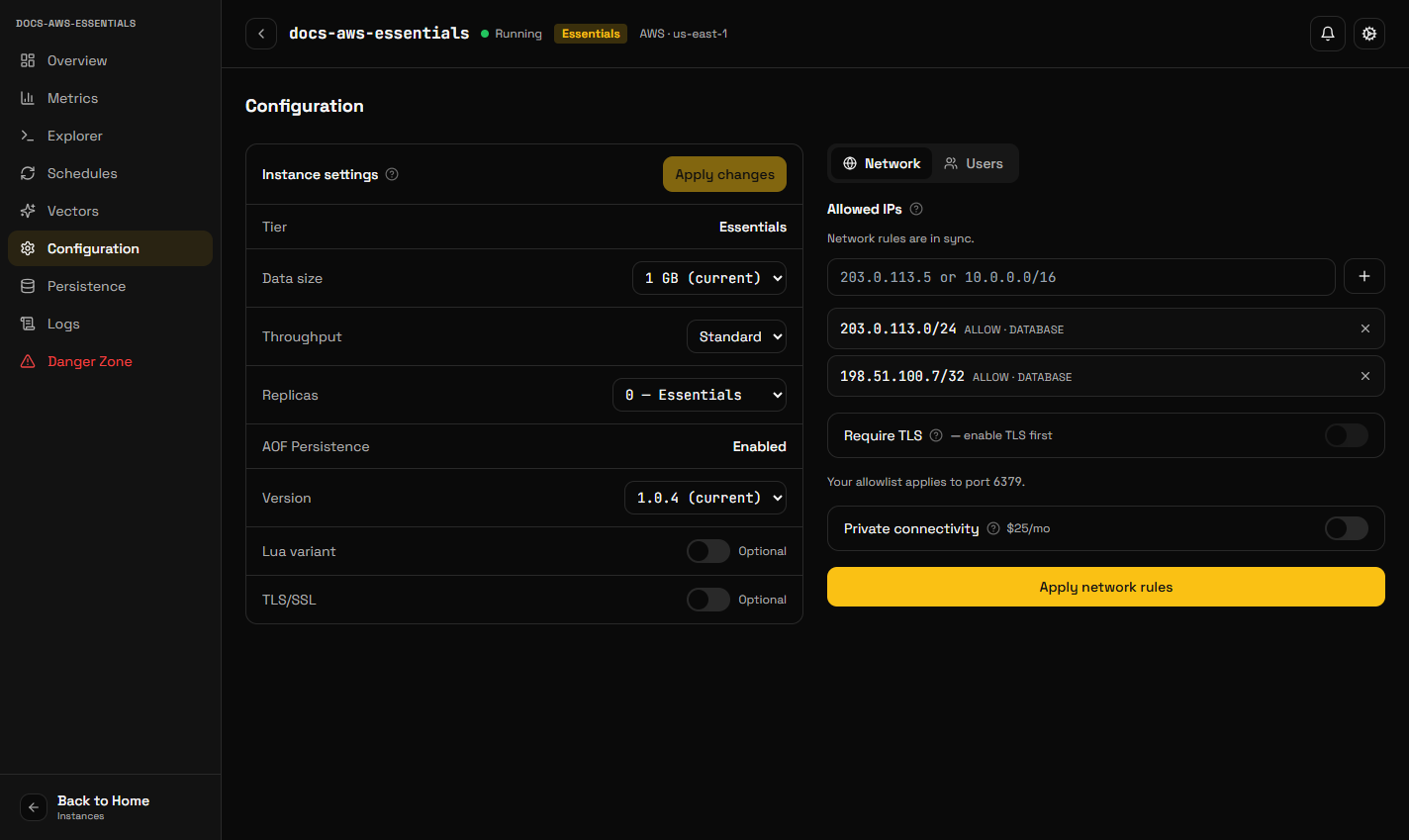
Access to your instance is controlled in Configuration → Network.
Allowed IPs
Only the addresses listed here can reach your database. Everything else is refused at the network level, before it ever reaches the engine.
Add single addresses (203.0.113.5) or ranges in CIDR form
(10.0.0.0/16). Changes apply within a few seconds; the page tells you when
they are in sync.
A few things worth knowing:
- Home and office IPs usually change. If you could connect yesterday and cannot today, check your current address first.
- Add your application servers, not just your laptop. A common mistake is deploying an app that cannot reach the database because only a developer machine was allow-listed.
- An empty list means nothing can connect. That is valid if you use private connectivity, and a mistake otherwise.
TLS
TLS/SSL in Configuration → Instance settings adds an encrypted endpoint
on port 6380. Enabling it restarts the instance, because it changes which
build of the engine runs.
Enabling TLS adds the encrypted port — it does not close the unencrypted one. Both accept your allow-list until you require TLS.
Require TLS
Require TLS, in Configuration → Network, closes the unencrypted port to
your clients. Your allow-list is then published on 6380 only, and 6379 is no
longer reachable from the internet.
Turn this on once every client is connecting over TLS. Turning it on while something still connects in plaintext will break that client immediately.
This takes effect within seconds — nothing restarts.
Block public access
Block public access withdraws your entire allow-list, so no client of yours can reach the instance over the internet. It is available only when private connectivity is enabled, because otherwise it would leave the instance unreachable.
Your allow-list rules are kept, not deleted. Turn the option off and they come back exactly as they were.
The Explorer continues to work while public access is blocked. KiviDB keeps a management connection to your instance for health monitoring, applying user and permission changes, and the in-browser data browser; it cannot be disabled, because those features stop working without it. Section 10.4 of the Terms of Service sets this out.
Which port is actually open
The network page tells you which ports your allow-list is published on, and the
overview shows the port to connect to. These reflect your TLS and public-access
settings, so trust them over any assumption about 6379.